> For the complete documentation index, see [llms.txt](https://docs.tabula.io/llms.txt). Markdown versions of documentation pages are available by appending `.md` to page URLs; this page is available as [Markdown](https://docs.tabula.io/data-flows/designing-flows/creating-flows.md).
# Creating Flows
## Overview
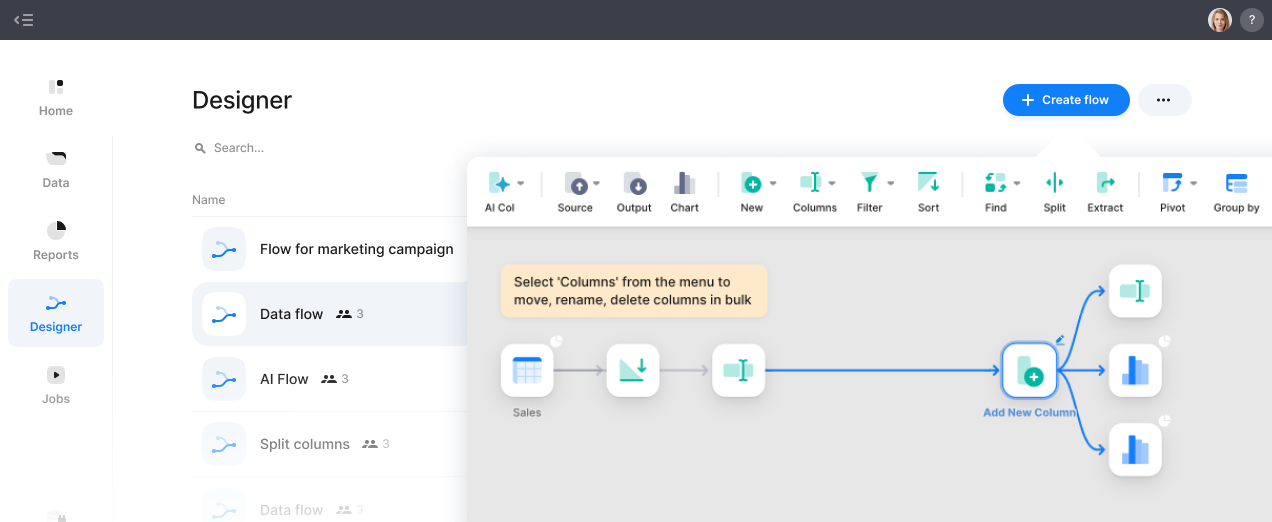
You will design and set up your data transformations on the Flow page. A data flow consists of connected nodes that perform different transformations to process data in Flow Designer. When you build a data flow, you add and connect nodes. You also configure those nodes and workflow properties. To make a new flow, go to Flows Page and select **Create a Flow,** or go to Home Page and select **Create a Data Flow.**
Flow connections move in a downstream direction horizontally. In this mode, you will work with sample data to apply and preview results in real-time.
## How It works
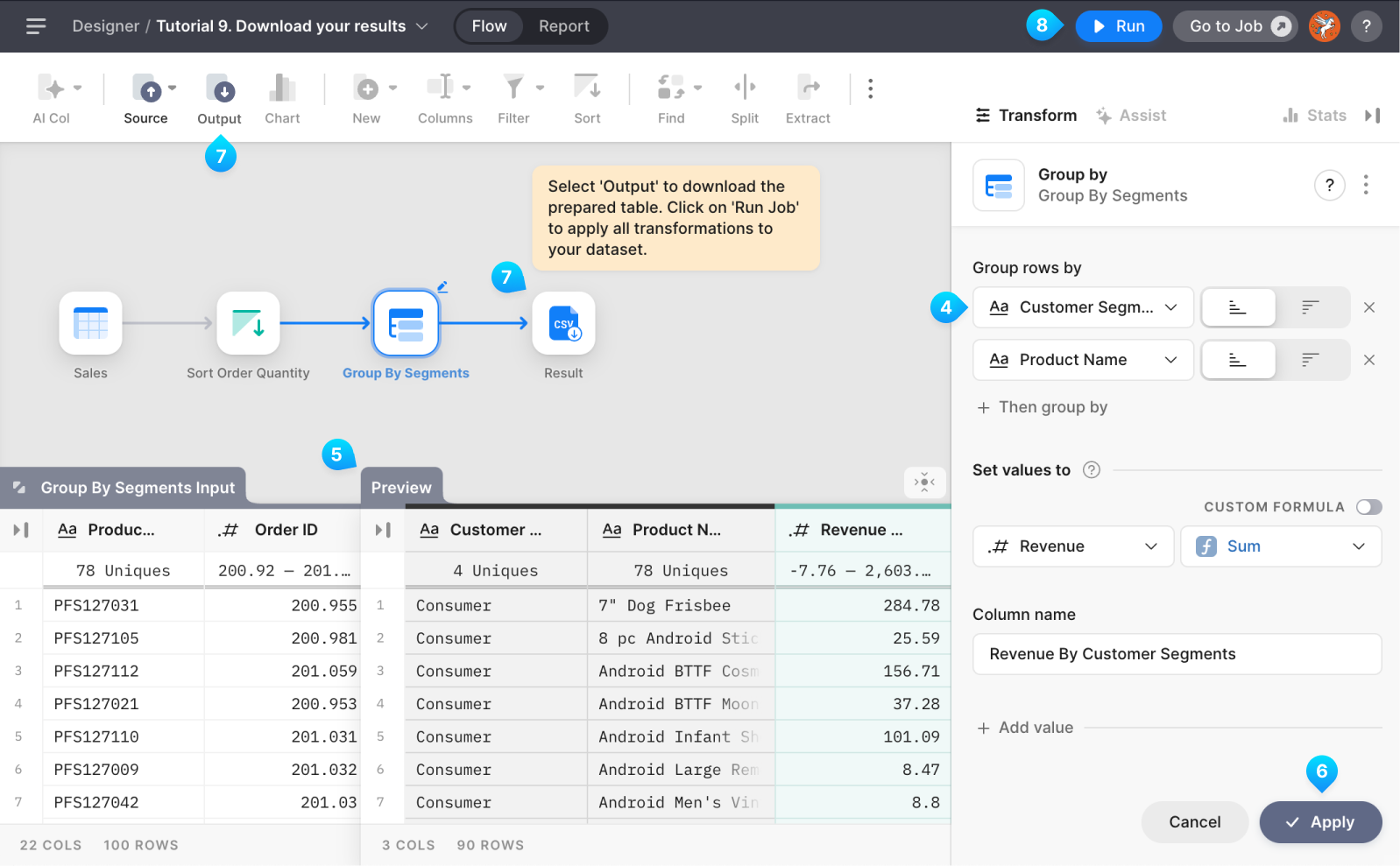
1. Open the app and select "Create" on the Flows pages
2. **Add Transform Nodes**. In Design Flow mode, various nodes are available, each performing specific tasks, such as sorting, filtering, or merging data. To include a node in the flow, click on it in the toolbar, and it will be added to the canvas.
\
As the first step, you need to add a Source node and select your source dataset. You can add any number of sources you need.
3. **Connect Nodes.** If any canvas nodes are selected, a new node is automatically set as an input connector. If not no nodes were selected, you would see a blue frame around the canvas; you need to click on the node you want to connect to.
4. **Configure Draft Nodes.** Each node features settings that can be adjusted to customize the transformation. Click on a node to open its settings panel and modify the necessary parameters.
5. **Realtime Preview.** While configuring the node’s parameters, you will see a result table preview in real time.
6. **Apply the Transform.** Press the Apply button on the settings panel once you are good with the transformation result.
7. **Add Destination.** Add node Output and set your destination dataset where the result should be saved. You can add more than one destination.
8. **Execute Flow.** Press the "Run" button to execute the flow.