> For the complete documentation index, see [llms.txt](https://docs.tabula.io/llms.txt). Markdown versions of documentation pages are available by appending `.md` to page URLs; this page is available as [Markdown](https://docs.tabula.io/data-flows/tools-nodes/columns-operations/replace-text.md).
# Replace Text
Finds and replaces the specified part of text
## Overview
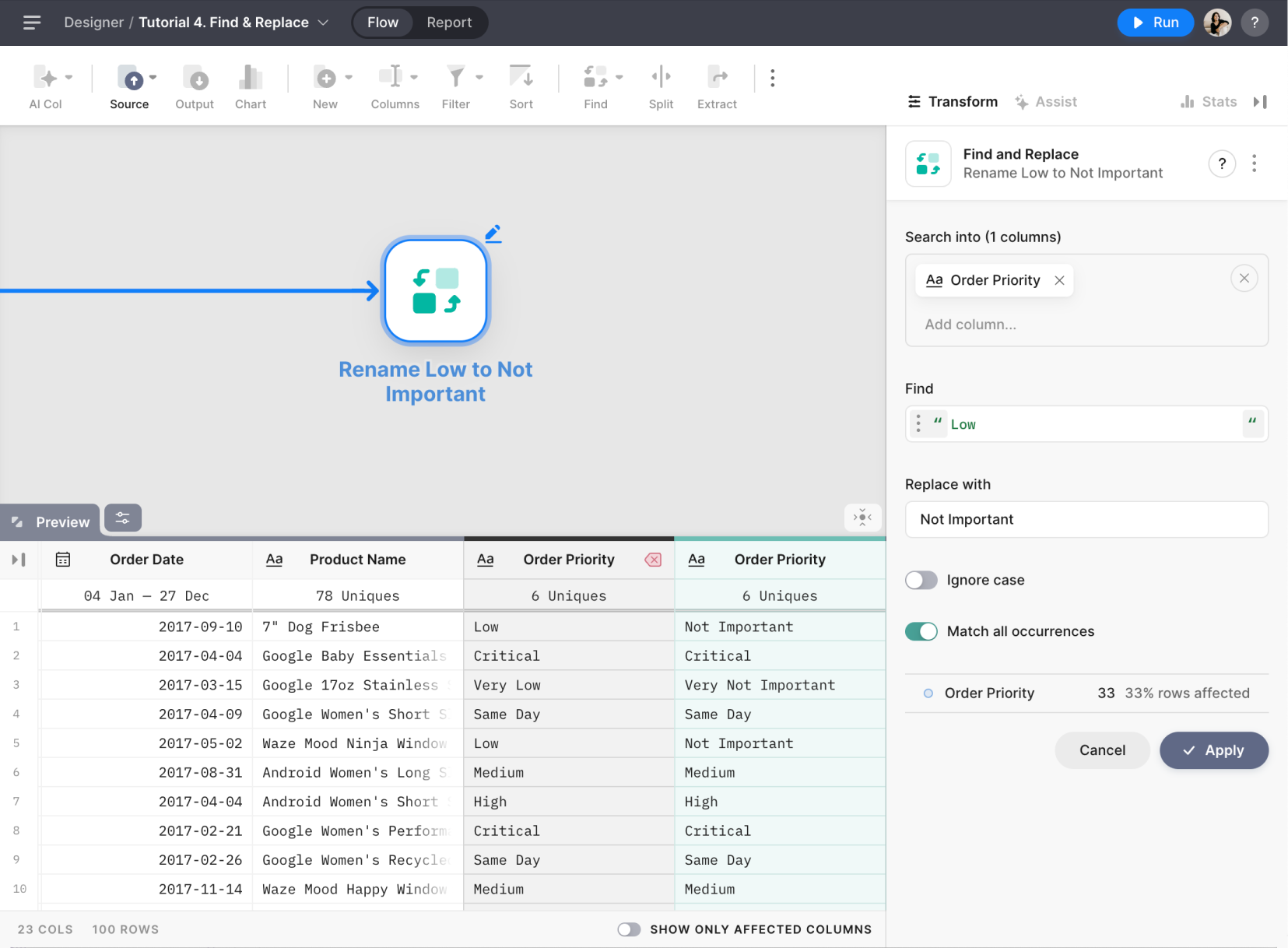
The Find and Replace Node allows you to search for specific text within one or multiple columns in your dataset and replace the found text with a specified value. In this guide, we will explain the properties and functionalities of the Find and Replace Node.
## **Settings**
#### **Search into**
In the "Search Into" property, select one or multiple columns to search for the specified text or pattern. The selected columns should contain text data that can be processed using the specified text or pattern.
#### **Find**
Specify the text or regex pattern to find using the "Find" property. You can choose between a text string or a regular expression (regex) pattern:
1. Text string: Enter a simple text string that will be used to find the text within the column values.
2. Regex pattern: Enter a regular expression pattern that will be used to find the text within the column values. Find out how to use Regex [Using Regex](/tutorials/using-regex.md) and the list of supported tokens [Regex: List of Tokes](/data-transformation/formulas/regex-list-of-tokes.md)
#### **Replace with**
Enter the replacement text in the "Replace With" property. This text will replace the found text or pattern within the selected columns.
#### **Ignore case**
Enable the "Ignore Case" toggle if you want the search process to be case-insensitive. When this option is enabled, the Find and Replace Node will not differentiate between uppercase and lowercase characters when finding the text.
#### **Match all occurrences**
The "Match All Occurrences" toggle is enabled by default. When this option is enabled, the Find and Replace Node will search for and replace all occurrences of the specified text or pattern within the selected columns.